Google Sheets keyboard shortcuts: a cheat sheet grouped by task
The Google Sheets keyboard shortcuts worth learning: navigation, selection, formatting, rows, formulas and menus, with Mac versions and a few built-in tricks.
By The Applio team12 min read
Google Sheets runs in a browser, so a lot of people assume it has no real keyboard shortcuts. It has plenty, and most of them match what you already know from other apps. The tables below cover the ones that save the most clicking, grouped by task, with the Mac version in its own column.
Shortcuts are listed for Windows first. On a Chromebook they are the same unless the text says otherwise; the main difference is that ChromeOS uses the Search key where Windows uses Home, End and the function keys. On a Mac, Cmd is the ⌘ key and Option is the key labelled Option or Alt.
See every shortcut from inside Sheets
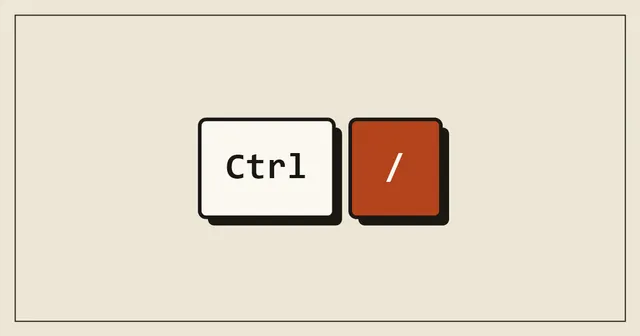
Press Ctrl + / (Cmd + / on a Mac) in any spreadsheet and Sheets opens its full list of shortcuts, with a search box. It is the quickest way to check a combination you half remember.
At the bottom of that dialog there is a toggle for compatible spreadsheet shortcuts. Turn it on and Sheets adds many of the shortcuts people know from Excel. If you switch between the two programs every day, it saves you from keeping two sets of habits. Our Excel shortcuts cheat sheet covers the Excel side.
Move around a sheet
| Shortcut (Windows) | Mac | What it does |
|---|---|---|
| Ctrl + arrow key | Cmd + arrow key | Jump to the edge of the current block of data |
| Home / End | Fn + Left / Right | Start or end of the row |
| Ctrl + Home | Cmd + Fn + Left | Go to the beginning of the sheet |
| Ctrl + End | Cmd + Fn + Right | Go to the end of the sheet |
| Ctrl + Backspace | Cmd + Backspace | Scroll back to the active cell |
| Alt + Down / Up | Option + Down / Up | Next or previous sheet tab |
| Alt + Shift + K | Option + Shift + K | Show a list of all sheets in the file |
| Ctrl + F | Cmd + F | Find in the current sheet |
| Ctrl + H | Cmd + Shift + H | Find and replace |
On a Chromebook, Home and End become Search + Left and Search + Right, and switching sheet tabs is Ctrl + Shift + Search + Down or Up. On some MacBooks, switching tabs uses Option + Right and Left instead.
Ctrl + Backspace is handy after you scroll far away to check something. One press brings the selected cell back into view without losing your place.
Select cells, rows and columns
| Shortcut (Windows) | Mac | What it does |
|---|---|---|
| Shift + arrow key | Shift + arrow key | Extend the selection one cell at a time |
| Ctrl + Shift + arrow key | Cmd + Shift + arrow key | Select to the edge of the data |
| Ctrl + Space | Ctrl + Space | Select the whole column |
| Shift + Space | Shift + Space | Select the whole row |
| Ctrl + A | Cmd + A | Select all |
Selecting a long column with the mouse means dragging and overshooting. Click the first cell instead, press Ctrl + Shift + Down, and the selection stops at the last filled cell, however many rows there are.
Edit and fill data
| Shortcut (Windows) | Mac | What it does |
|---|---|---|
| Enter | Return | Start editing the selected cell |
| Esc | Esc | Cancel the edit and keep the old value |
| Ctrl + Enter | Cmd + Enter | Fill the selected range with what you typed |
| Ctrl + D | Cmd + D | Fill down from the top cell of the selection |
| Ctrl + R | Cmd + R | Fill right from the left cell of the selection |
| Ctrl + Shift + V | Cmd + Shift + V | Paste values only, without formatting or formulas |
| Ctrl + ; | Cmd + ; | Insert today's date |
| Ctrl + Shift + ; | Cmd + Shift + ; | Insert the current time |
| Ctrl + Alt + Shift + ; | Cmd + Option + Shift + ; | Insert the date and time |
| Ctrl + K | Cmd + K | Insert a link |
| Alt + Enter | Option + Enter | Open the link in the selected cell |
| Ctrl + Z | Cmd + Z | Undo |
| Ctrl + Y | Cmd + Y | Redo |
Google lists different date and time shortcuts for some keyboard layouts. In Portugal, Italy, Germany and Spain, for example, the date is Ctrl + Shift + D and the time is Ctrl + Shift + H. If the semicolon versions do nothing on your keyboard, check the list under Ctrl + /.
Ctrl + Enter is useful for status columns. Select twenty cells, type "Paid", press Ctrl + Enter, and all twenty get the same value.
Format cells
| Shortcut (Windows) | Mac | What it does |
|---|---|---|
| Ctrl + B / I / U | Cmd + B / I / U | Bold, italic, underline |
| Alt + Shift + 5 | Cmd + Shift + X | Strikethrough |
| Ctrl + Shift + L / E / R | Cmd + Shift + L / E / R | Align left, centre or right |
| Ctrl + Shift + 1 | Ctrl + Shift + 1 | Number format with decimals |
| Ctrl + Shift + 3 | Ctrl + Shift + 3 | Date format |
| Ctrl + Shift + 4 | Ctrl + Shift + 4 | Currency format |
| Ctrl + Shift + 5 | Ctrl + Shift + 5 | Percentage format |
| Alt + Shift + 7 | Option + Shift + 7 | Outer border around the selection |
| Alt + Shift + 6 | Option + Shift + 6 | Remove borders |
| Ctrl + \ | Cmd + \ | Clear formatting |
The number formats use Ctrl on a Mac too, which catches people out. Ctrl + \ is the one to remember when you paste a block of text from a website and it arrives with the wrong font, colours and sizes.
Rows, columns and groups
| Shortcut (Windows) | Mac | What it does |
|---|---|---|
| Ctrl + Alt + = | Cmd + Option + = | Insert rows above or columns to the left (with rows or columns selected) |
| Ctrl + Alt + - | Cmd + Option + - | Delete the selected rows or columns |
| Ctrl + Alt + 9 | Cmd + Option + 9 | Hide rows |
| Ctrl + Shift + 9 | Cmd + Shift + 9 | Unhide rows |
| Ctrl + Alt + 0 | Cmd + Option + 0 | Hide columns |
| Ctrl + Shift + 0 | Cmd + Shift + 0 | Unhide columns |
| Alt + Shift + Right | Option + Shift + Right | Group the selected rows or columns |
| Alt + Shift + Left | Option + Shift + Left | Ungroup them |
| Alt + Shift + Down / Up | Option + Shift + Down / Up | Expand or collapse a group |
| Shift + F11 | Shift + Fn + F11 | Insert a new sheet |
A good pattern: press Shift + Space to select a row, add more rows with Shift + Down, then Ctrl + Alt + = to insert the same number of empty rows above.
Grouping is a tidier alternative to hiding. A group shows a small plus or minus button next to the row numbers, so anyone opening the file can see that something is collapsed there.
Formulas
| Shortcut (Windows) | Mac | What it does |
|---|---|---|
| F4 | Fn + F4 | Cycle a reference through absolute and relative ($A$1, A$1, $A1, A1) while typing a formula |
| Ctrl + ~ | Ctrl + ~ | Show all formulas instead of results |
| F1 | Fn + F1 | Switch between full and compact formula help while typing |
| Shift + F1 | Shift + Fn + F1 | Show or hide formula help |
| F9 | Fn + F9 | Turn formula result previews on or off while typing |
| Ctrl + Shift + Enter | Cmd + Shift + Enter | Insert an array formula |
On a Chromebook, the function keys become Search plus the number, so F4 is Search + 4.
Ctrl + ~ uses the key to the left of 1 on most keyboards. Press it once to see every formula in the sheet, which is the quickest way to spot a cell where someone typed a number over a formula. Press it again to go back.
Comments, notes and history
| Shortcut (Windows) | Mac | What it does |
|---|---|---|
| Ctrl + Alt + M | Cmd + Option + M | Add or edit a comment |
| Shift + F2 | Shift + F2 | Add or edit a note |
| Ctrl + Alt + Shift + A | Cmd + Option + Shift + A | Open the comment threads |
| Ctrl + Alt + Shift + H | Cmd + Option + Shift + H | Open version history |
| Ctrl + Alt + Shift + I | Cmd + Option + Shift + I | Open Explore |
Comments notify people and can be assigned; notes are plain sticky labels on a cell. Use notes for explanations that should stay ("prices exclude VAT") and comments for questions you expect someone to answer. On a Chromebook, a note is Shift + Search + 2.
Version history is worth knowing before you need it. If a shared sheet suddenly looks wrong, it shows who changed what and lets you restore an earlier version.
Open menus from the keyboard
In Chrome on Windows, Alt plus the first letter of a menu opens it: Alt + F for File, Alt + E for Edit, Alt + I for Insert, Alt + O for Format, Alt + D for Data and Alt + T for Tools. In other browsers on Windows, add Shift (Alt + Shift + F). On a Mac it is Ctrl + Option plus the letter.
Two more that are easy to miss: Ctrl + Shift + F hides the menus and toolbar to give you more rows on a small laptop screen, and Shift + F10 opens the right-click menu for the selected cells.
If you work in Chrome all day, the Chrome shortcuts and hidden tricks guide covers the browser shortcuts that sit around Sheets, such as reopening a tab you closed by accident.
Built-in tricks worth knowing
These live in the menus, and each one removes a job people usually do by hand.
Tool finder. Press Alt + / (Option + / on a Mac) and type what you want, such as "freeze" or "remove duplicates". Sheets finds the menu command for you, which is faster than remembering which menu it lives in.
Quick sum. Select a range of numbers and look at the bottom right of the window. Sheets shows the sum, and clicking it lets you switch to the average, minimum, maximum or count. You do not need to write a formula just to check a total.
Smart Fill. Start typing a pattern next to existing data, for example first names taken from a column of full names. When Sheets spots the pattern it suggests the rest, and Ctrl + Shift + Y (Cmd + Shift + Y on a Mac) accepts it. It does not always find a pattern, so check the results before you rely on them.
Convert to a table. Ctrl + Alt + T (Cmd + Option + T on a Mac, Shift + Alt + T on a Chromebook) turns a plain range into a table with a header row, filters and column types. It suits lists such as clients, stock or bookings.
Dropdowns. Insert, Dropdown adds a list of allowed values to a cell, with optional colours. A status column with "To do", "Waiting" and "Done" is much easier to filter than one where everyone types their own wording.
Data cleanup. Data, Data cleanup has "Remove duplicates" and "Trim whitespace". Both are worth running on any list you pasted in from email or another system.
Split text to columns. Data, Split text to columns separates "Smith, Anna" into two cells, using a comma, space or another separator you choose.
Freeze the header row. View, Freeze, 1 row keeps the column names visible while you scroll down a long list.
Filter views. A normal filter changes what everyone sees in a shared sheet. A filter view (under Data, Filter views) filters only your own view, so you can sort and filter without disturbing colleagues who have the file open.
If you want help writing a formula you cannot quite work out, describing the columns to an AI assistant in plain language works well. Our ChatGPT prompts for small business include a few examples of how to phrase that kind of request.
Common questions
Do Google Sheets shortcuts work in every browser?
Most of them do. The menu shortcuts differ: in Chrome on Windows they use Alt plus a letter, and in other browsers Alt + Shift plus a letter. Some browsers also reserve combinations for themselves, in which case the browser action wins.
Can I use Excel shortcuts in Google Sheets?
Partly. Many basics are identical, such as Ctrl + arrow, Ctrl + D and F4 for absolute references. For more, open the shortcut list with Ctrl + / and turn on compatible spreadsheet shortcuts at the bottom.
Why does a shortcut do nothing on my Mac?
Check whether it needs Fn. On most Mac keyboards the top row controls brightness and volume, so F4 becomes Fn + F4. Also check that the shortcut uses Ctrl and not Cmd: the number format shortcuts, for example, use Ctrl on every platform. Our Mac keyboard shortcuts guide explains the modifier keys in more detail.
Do these shortcuts work in the Sheets app on a phone?
This list is for Sheets in a web browser on a computer. The Android and iPhone apps work differently, so expect many of these combinations to be missing there, even with a keyboard attached.
Written by
The Applio team
We build booking software for appointment-based businesses: the Applio platform and the BarberSamir app on the App Store. We write about the tools and habits that save us time. More about us
Keep reading
Shortcuts
Windows 11 keyboard shortcuts: 60 that actually save time
A practical Windows 11 shortcut cheat sheet covering windows, screenshots, clipboard history, virtual desktops, File Explorer and text editing, grouped by task.
· 7 min read
Shortcuts
Mac keyboard shortcuts cheat sheet: 55 every Mac user should know
The Mac shortcuts that matter: Spotlight, screenshots, window tiling, Finder navigation, hidden files and text editing. Grouped by task, with macOS tips that most switchers miss.
· 6 min read
Shortcuts
Excel shortcuts cheat sheet: 45 shortcuts to work twice as fast
The Excel keyboard shortcuts that matter most: moving around big sheets, selecting data, formatting, formulas, filters and tables. Windows first, with Mac equivalents where they differ.
· 7 min read