Windows 11 keyboard shortcuts: 60 that actually save time
A practical Windows 11 shortcut cheat sheet covering windows, screenshots, clipboard history, virtual desktops, File Explorer and text editing, grouped by task.
By The Applio team7 min read
Most people stop at Ctrl + C and Ctrl + V. That covers copying, but every other task still goes through the mouse: snapping a window, grabbing a screenshot, finding a file you saved five minutes ago. The shortcuts below remove those little detours. They are grouped by what you are trying to do, so you can learn one group at a time.
In the tables, Win means the Windows logo key.
The five to learn first
If you only learn five shortcuts this week, make it these. Each one replaces a sequence of clicks you probably do several times a day.
- Win + V opens clipboard history. Windows keeps the last 25 things you copied. Press the shortcut, pick an older item, and it pastes. The first time, Windows asks you to turn the feature on.
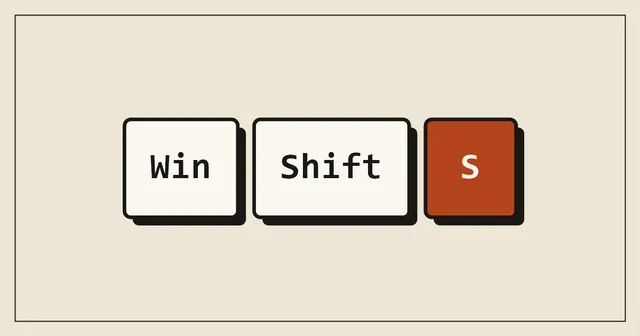
- Win + Shift + S takes a screenshot of part of the screen. Drag a box, and the image lands on your clipboard, ready to paste into an email or chat.
- Win + arrow keys snap the active window. Left and right fill half the screen; up maximises; down restores or minimises.
- Win + . opens the emoji panel, which also has symbols such as €, ©, arrows and accented letters.
- Ctrl + Shift + Esc opens Task Manager directly, without the extra menu you get from Ctrl + Alt + Delete.
Windows and virtual desktops
| Shortcut | What it does |
|---|---|
| Win + D | Show the desktop; press again to bring everything back |
| Win + M | Minimise all windows |
| Win + Shift + M | Restore the windows you minimised |
| Win + Home | Minimise everything except the active window |
| Win + Z | Open Snap layouts for the active window |
| Win + Shift + Left/Right | Move the window to the other monitor |
| Alt + Tab | Switch between open windows |
| Win + Tab | Task View: every window and desktop at once |
| Win + Ctrl + D | Create a new virtual desktop |
| Win + Ctrl + Left/Right | Switch between virtual desktops |
| Win + Ctrl + F4 | Close the current virtual desktop |
| Win + 1 to 9 | Open or switch to the app pinned at that taskbar position |
| Win + Shift + 1 to 9 | Open a new window of that taskbar app |
| Win + T | Cycle through taskbar apps |
| Alt + F4 | Close the active app; on the desktop, open the shut down dialog |
Virtual desktops are worth a try if you work on two kinds of things at once. Keep email and chat on one desktop and the actual work on another, then flip between them with Win + Ctrl + arrow.
Screenshots and screen recording
| Shortcut | What it does |
|---|---|
| Win + Shift + S | Snipping Tool: rectangle, freeform, window or full screen |
| PrtScn | On current Windows 11 builds, opens the same Snipping Tool overlay |
| Win + PrtScn | Save a full-screen screenshot to Pictures\Screenshots |
| Alt + PrtScn | Copy only the active window |
| Win + G | Open Xbox Game Bar, which can record the screen |
| Win + Alt + R | Start or stop a Game Bar recording of the current app |
If PrtScn still copies the whole screen silently on your PC, the setting is off. You can change it under Settings, Accessibility, Keyboard, "Use the Print screen key to open screen capture".
Search, settings and system
| Shortcut | What it does |
|---|---|
| Win | Open Start; start typing to search |
| Win + S | Open search |
| Win + I | Open Settings |
| Win + A | Quick Settings: Wi-Fi, Bluetooth, volume, brightness |
| Win + N | Notifications and calendar |
| Win + W | Widgets |
| Win + X | Quick Link menu: Device Manager, Terminal, Disk Management and more |
| Win + R | Run dialog |
| Win + L | Lock the PC |
| Win + P | Choose how a second screen or projector is used |
| Win + K | Cast to a wireless display |
| Win + Space | Switch keyboard layout or input language |
| Win + Pause | Open Settings, System, About |
| Win + Ctrl + Shift + B | Restart the graphics driver (useful after a black or frozen screen) |
Win + L deserves a place in your muscle memory if you work in an office or a shop. Locking takes one second, and nobody can read your email while you make a coffee.
File Explorer
| Shortcut | What it does |
|---|---|
| Win + E | Open File Explorer |
| Ctrl + T | New Explorer tab |
| Ctrl + W | Close the current tab or window |
| Ctrl + Shift + N | New folder |
| F2 | Rename the selected file |
| Alt + Enter | Properties of the selected file |
| Alt + Up | Go up one folder |
| Alt + Left/Right | Back and forward |
| Ctrl + L | Jump to the address bar to type a path |
| Ctrl + E | Search the current folder |
| Ctrl + Shift + C | Copy the full path of the selected file |
| Shift + Delete | Delete permanently, skipping the Recycle Bin |
Be careful with Shift + Delete. Windows asks for confirmation, but the file does not go to the Recycle Bin, so there is no easy way back.
Text editing that works almost everywhere
These work in Word, Outlook, browsers, Notepad and most other apps.
| Shortcut | What it does |
|---|---|
| Ctrl + Left/Right | Jump a whole word |
| Ctrl + Shift + Left/Right | Select a word at a time |
| Ctrl + Backspace | Delete the previous word |
| Ctrl + Delete | Delete the next word |
| Home / End | Start or end of the line |
| Ctrl + Home / End | Start or end of the document |
| Shift + Home / End | Select to the start or end of the line |
| Ctrl + Z / Ctrl + Y | Undo and redo |
| Ctrl + A | Select all |
| Ctrl + F | Find on the page or in the document |
| Win + H | Voice typing into whatever text box is active |
Ctrl + Backspace is the one people thank us for. Deleting a word at a time instead of a letter at a time makes fixing typos noticeably faster.
Accessibility shortcuts
| Shortcut | What it does |
|---|---|
| Win + + | Turn on Magnifier and zoom in |
| Win + Esc | Turn off Magnifier |
| Win + Ctrl + Enter | Turn Narrator on or off |
| Win + U | Open the Accessibility settings |
How to make new shortcuts stick
Reading a list of sixty shortcuts does very little. Using three of them until they are automatic does a lot. A method that works:
- Pick three shortcuts from this page that replace something you do every day.
- Write them on a sticky note and put it on the bottom edge of your monitor.
- Every time you reach for the mouse to do one of those things, stop and use the keys instead.
- After a week, swap the note for three new ones.
If you spend your day in spreadsheets, our Excel shortcuts cheat sheet is the natural next step. Browser-heavy work? See the Chrome shortcuts and hidden tricks.
Common questions
Why does Win + V not show anything?
Clipboard history is off by default. Press Win + V once and choose "Turn on", or enable it under Settings, System, Clipboard. Items you copied before turning it on will not appear.
Is there a built-in list of every shortcut?
Windows has no single built-in overlay for this. Microsoft's free PowerToys app adds a Shortcut Guide that shows the Windows key shortcuts on screen when you press Win + Shift + /.
Do these shortcuts work on Windows 10?
Most of them do. The Windows 11 specific ones are Win + Z (Snap layouts), Win + A (the new Quick Settings), Win + N and tabs in File Explorer.
Written by
The Applio team
We build booking software for appointment-based businesses: the Applio platform and the BarberSamir app on the App Store. We write about the tools and habits that save us time. More about us
Keep reading
Shortcuts
Mac keyboard shortcuts cheat sheet: 55 every Mac user should know
The Mac shortcuts that matter: Spotlight, screenshots, window tiling, Finder navigation, hidden files and text editing. Grouped by task, with macOS tips that most switchers miss.
· 5 min read
Shortcuts
Excel shortcuts cheat sheet: 45 shortcuts to work twice as fast
The Excel keyboard shortcuts that matter most: moving around big sheets, selecting data, formatting, formulas, filters and tables. Windows first, with Mac equivalents where they differ.
· 7 min read
Shortcuts
Google Chrome shortcuts and hidden tricks you'll use every day
Reopen closed tabs, search your open tabs, paste without formatting, save pages as PDF and more. The Chrome shortcuts and built-in features worth knowing, for Windows and Mac.
· 6 min read