Google Chrome shortcuts and hidden tricks you'll use every day
Reopen closed tabs, search your open tabs, paste without formatting, save pages as PDF and more. The Chrome shortcuts and built-in features worth knowing, for Windows and Mac.
By The Applio team6 min read
Most of a working day now happens inside a browser tab, so small Chrome habits add up. This guide has two parts: the keyboard shortcuts that remove the most clicking, and the built-in features that many people never find in the menus.
On a Mac, use Cmd wherever the Windows shortcut uses Ctrl, unless the table lists something different.
Tabs and windows
| Windows | Mac | What it does |
|---|---|---|
| Ctrl + T | Cmd + T | New tab |
| Ctrl + W | Cmd + W | Close the current tab |
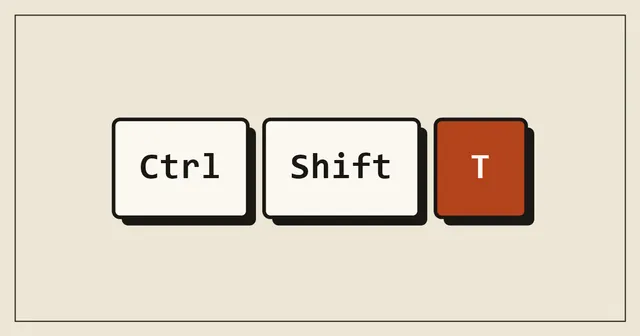
| Ctrl + Shift + T | Cmd + Shift + T | Reopen the last closed tab (keep pressing to go further back) |
| Ctrl + Tab | Ctrl + Tab | Next tab |
| Ctrl + Shift + Tab | Ctrl + Shift + Tab | Previous tab |
| Ctrl + 1 to 8 | Cmd + 1 to 8 | Jump to that tab |
| Ctrl + 9 | Cmd + 9 | Jump to the last tab |
| Ctrl + Shift + A | Cmd + Shift + A | Search through all your open tabs |
| Ctrl + N | Cmd + N | New window |
| Ctrl + Shift + N | Cmd + Shift + N | New Incognito window |
| Ctrl + Shift + W | Cmd + Shift + W | Close the whole window |
| Ctrl + click a link | Cmd + click | Open the link in a background tab |
Ctrl + Shift + T is the shortcut people are most glad to learn. It also brings back a whole window if that was the last thing you closed, with all its tabs.
Address bar and search
| Windows | Mac | What it does |
|---|---|---|
| Ctrl + L or Alt + D | Cmd + L | Select the address bar |
| Ctrl + K | Cmd + Option + F | Search with your default search engine from the address bar |
| Alt + Enter after typing | Cmd + Return | Open what you typed in a new tab |
| Ctrl + F | Cmd + F | Find on the page |
| Ctrl + G | Cmd + G | Next match on the page |
Typing in the address bar also accepts a few shortcuts of its own. Start with @tabs, @bookmarks or @history followed by a space, and Chrome searches only that list. "@history invoice" finds that invoice page from last week without scrolling through your history.
Pages, history and downloads
| Windows | Mac | What it does |
|---|---|---|
| Ctrl + D | Cmd + D | Bookmark the page |
| Ctrl + Shift + B | Cmd + Shift + B | Show or hide the bookmarks bar |
| Ctrl + Shift + O | Cmd + Option + B | Bookmark manager |
| Ctrl + H | Cmd + Y | History |
| Ctrl + J | Cmd + Shift + J | Downloads |
| Ctrl + P | Cmd + P | Print, or save the page as a PDF |
| Ctrl + S | Cmd + S | Save the page |
| Ctrl + + / - / 0 | Cmd + + / - / 0 | Zoom in, zoom out, reset |
| F5 or Ctrl + R | Cmd + R | Reload |
| Ctrl + Shift + R | Cmd + Shift + R | Reload without the cache |
| Ctrl + Shift + Delete | Cmd + Shift + Delete | Clear browsing data |
| Shift + Esc | Window menu, Task Manager | Chrome's task manager: which tab is using memory |
The hard reload (Ctrl + Shift + R) is what to try when a website looks broken or out of date for you but fine for everyone else.
Text and forms
| Windows | Mac | What it does |
|---|---|---|
| Ctrl + Shift + V | Cmd + Shift + Option + V | Paste as plain text, without fonts and colours |
| Ctrl + Backspace | Option + Delete | Delete the previous word |
| Tab / Shift + Tab | Tab / Shift + Tab | Next or previous form field |
| Space / Shift + Space | Space / Shift + Space | Scroll a screen down or up |
Plain-text paste solves the classic problem of copying something from a web page into an email and getting a different font, size and background colour along with it.
Built-in features worth knowing
These need no extension. Most live in the three-dot menu or appear when you right-click.
Tab groups. Right-click a tab and choose "Add tab to new group". Name the group and pick a colour, then click the group label to collapse it. A group per client or project keeps the tab bar readable, and you can save a group to reopen it later.
Reading mode. For long articles full of ads and pop-ups, right-click the page and choose "Open in reading mode". The text appears in the side panel with adjustable font size and spacing.
Search with Google Lens. Right-click any image and choose "Search with Google Lens" to find where it comes from, translate text inside it, or identify a product.
Translate the page. When a page is in another language, the translate icon appears in the address bar. You can also right-click and choose "Translate to English" (or your language).
Send a page to your phone. Click the address bar, then the share or devices icon, and send the tab to another device where you are signed in to Chrome.
QR code for any page. Right-click the page and choose "Create QR code for this page". Useful for putting a link on a flyer or a counter sign.
Memory Saver. Under Settings, Performance, turn on Memory Saver. Chrome then frees memory from tabs you have not used for a while and reloads them when you come back. On a laptop with 8 GB of memory this makes a visible difference.
Live Caption. Under Settings, Accessibility, turn on Live Caption to get subtitles for almost any video or audio playing in Chrome, including video calls.
Common questions
How do I restore all my tabs after Chrome crashed?
Open Chrome and press Ctrl + Shift + T. If that does not work, open History (Ctrl + H), where a "Recently closed" section often lists the whole window with a count of its tabs.
Can I change Chrome's keyboard shortcuts?
Chrome's own shortcuts are fixed, but extension shortcuts can be set at chrome://extensions/shortcuts.
More shortcut cheat sheets: Windows 11, Mac and Excel.
Written by
The Applio team
We build booking software for appointment-based businesses: the Applio platform and the BarberSamir app on the App Store. We write about the tools and habits that save us time. More about us
Keep reading
Shortcuts
Windows 11 keyboard shortcuts: 60 that actually save time
A practical Windows 11 shortcut cheat sheet covering windows, screenshots, clipboard history, virtual desktops, File Explorer and text editing, grouped by task.
· 7 min read
Shortcuts
Mac keyboard shortcuts cheat sheet: 55 every Mac user should know
The Mac shortcuts that matter: Spotlight, screenshots, window tiling, Finder navigation, hidden files and text editing. Grouped by task, with macOS tips that most switchers miss.
· 5 min read
Shortcuts
Excel shortcuts cheat sheet: 45 shortcuts to work twice as fast
The Excel keyboard shortcuts that matter most: moving around big sheets, selecting data, formatting, formulas, filters and tables. Windows first, with Mac equivalents where they differ.
· 7 min read