Mac keyboard shortcuts cheat sheet: 55 every Mac user should know
The Mac shortcuts that matter: Spotlight, screenshots, window tiling, Finder navigation, hidden files and text editing. Grouped by task, with macOS tips that most switchers miss.
By The Applio team5 min read
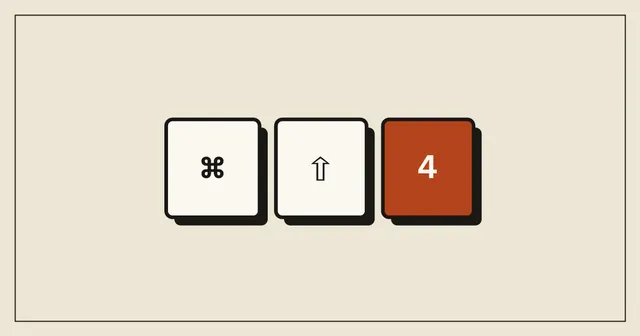
Macs reward keyboard users more than most computers. Almost every menu item has a shortcut, and Finder, Spotlight and the screenshot tools are designed to be driven from the keys. This cheat sheet covers the ones that save the most time, grouped by task.
A quick legend: Cmd is the Command key (⌘), Option is ⌥ (Alt on some keyboards), Ctrl is Control (⌃), and Fn is the Function or Globe key in the bottom-left corner of newer Mac keyboards.
The everyday essentials
| Shortcut | What it does |
|---|---|
| Cmd + Space | Spotlight: open apps, find files, do quick maths and conversions |
| Cmd + Tab | Switch between open apps |
| Cmd + ` | Switch between windows of the same app |
| Cmd + Q | Quit the app completely |
| Cmd + W | Close the window or tab, leaving the app open |
| Cmd + H | Hide the current app |
| Cmd + Option + H | Hide every app except the current one |
| Cmd + M | Minimise the window to the Dock |
| Cmd + , | Open the app's settings |
| Cmd + Option + Esc | Force Quit a frozen app |
| Ctrl + Cmd + Q | Lock the screen |
| Ctrl + Cmd + Space | Emoji and symbols picker (also Fn + E) |
Windows users notice the difference between Cmd + W and Cmd + Q quickly. Closing the last window on a Mac usually leaves the app running in the background. If an app should really stop, quit it.
Screenshots and screen recording
| Shortcut | What it does |
|---|---|
| Cmd + Shift + 3 | Screenshot of the whole screen |
| Cmd + Shift + 4 | Drag to capture part of the screen |
| Cmd + Shift + 4, then Space | Capture one window, with its shadow |
| Cmd + Shift + 5 | Screenshot toolbar with screen recording and a timer |
| Add Ctrl to any of the above | Copy to the clipboard instead of saving a file |
In the Cmd + Shift + 5 toolbar, the Options menu lets you change where screenshots are saved. Pointing it at a "Screenshots" folder instead of the Desktop keeps the Desktop clean.
Window tiling (macOS Sequoia and later)
macOS Sequoia added proper window tiling. With the window you want to move active:
| Shortcut | What it does |
|---|---|
| Fn + Ctrl + Left/Right | Tile the window to the left or right half |
| Fn + Ctrl + Up/Down | Tile to the top or bottom half |
| Fn + Ctrl + F | Fill the screen without entering full screen |
| Fn + Ctrl + C | Centre the window |
| Fn + Ctrl + R | Return the window to its previous size |
| Ctrl + Cmd + F | Real full screen (also Fn + F) |
You will find the same commands, with their shortcuts listed, in the Window menu under Move & Resize.
Mission Control and Spaces
| Shortcut | What it does |
|---|---|
| Ctrl + Up | Mission Control: every open window and Space |
| Ctrl + Down | Show all windows of the current app |
| Ctrl + Left/Right | Move between Spaces (desktops) |
| Cmd + Option + D | Show or hide the Dock |
Finder
| Shortcut | What it does |
|---|---|
| Cmd + N | New Finder window |
| Cmd + T | New Finder tab |
| Cmd + Shift + N | New folder |
| Return | Rename the selected file |
| Space | Quick Look preview of the selected file |
| Cmd + I | Get Info |
| Cmd + D | Duplicate the selected file |
| Cmd + Delete | Move to Trash |
| Cmd + Shift + Delete | Empty the Trash |
| Cmd + C, then Cmd + Option + V | Move a file instead of copying it |
| Cmd + Shift + . | Show or hide hidden files |
| Cmd + Shift + G | Go to a folder by typing its path |
| Cmd + Up | Go to the enclosing folder |
| Cmd + Down | Open the selected item |
| Cmd + [ / ] | Back and forward |
| Cmd + 1 to 4 | Icon, list, column or gallery view |
| Cmd + Shift + A | Applications folder |
| Cmd + Option + L | Downloads folder |
| Cmd + Shift + D | Desktop folder |
| Cmd + Shift + O | Documents folder |
| Cmd + Shift + H | Home folder |
| Cmd + Shift + R | AirDrop |
The move shortcut answers the most common question from people who come from Windows: there is no "cut" for files in Finder. You copy with Cmd + C and then hold Option when you paste.
Text editing
| Shortcut | What it does |
|---|---|
| Option + Left/Right | Jump a word |
| Cmd + Left/Right | Start or end of the line |
| Cmd + Up/Down | Start or end of the document |
| Add Shift to any of the above | Select instead of moving |
| Option + Delete | Delete the previous word |
| Cmd + Delete | Delete to the start of the line |
| Fn + Delete | Forward delete (the character to the right) |
| Cmd + Option + Shift + V | Paste without formatting in most apps |
| Ctrl + Cmd + D | Look up the word under the pointer in the dictionary |
| Cmd + Shift + / | Search the app's Help menu, which also finds menu commands |
That last one is underused. When you cannot remember where a command lives, press Cmd + Shift + /, type part of its name, and macOS highlights it in the menus.
Make your own shortcuts
If a menu command you use daily has no shortcut, you can add one. Open System Settings, Keyboard, Keyboard Shortcuts, App Shortcuts, click the plus button, choose the app, and type the menu title exactly as it appears. It is a five-minute job that pays off for years.
Common questions
What is the Mac equivalent of Ctrl + Alt + Delete?
Cmd + Option + Esc opens Force Quit. For a full view of what is using memory and CPU, open Activity Monitor from Spotlight.
How do I right-click on a Mac?
Click with two fingers on the trackpad, or hold Ctrl while you click.
Why don't the window tiling shortcuts work?
They need macOS Sequoia (version 15) or later. On older versions, hover over the green button in a window's top-left corner to see the tiling options.
Working on Windows too? Our Windows 11 shortcut list covers the equivalents.
Written by
The Applio team
We build booking software for appointment-based businesses: the Applio platform and the BarberSamir app on the App Store. We write about the tools and habits that save us time. More about us
Keep reading
Shortcuts
Windows 11 keyboard shortcuts: 60 that actually save time
A practical Windows 11 shortcut cheat sheet covering windows, screenshots, clipboard history, virtual desktops, File Explorer and text editing, grouped by task.
· 7 min read
Shortcuts
Excel shortcuts cheat sheet: 45 shortcuts to work twice as fast
The Excel keyboard shortcuts that matter most: moving around big sheets, selecting data, formatting, formulas, filters and tables. Windows first, with Mac equivalents where they differ.
· 7 min read
Shortcuts
Google Chrome shortcuts and hidden tricks you'll use every day
Reopen closed tabs, search your open tabs, paste without formatting, save pages as PDF and more. The Chrome shortcuts and built-in features worth knowing, for Windows and Mac.
· 6 min read