Gmail shortcuts and tricks: 50 shortcuts plus 7 settings worth changing
Gmail keyboard shortcuts for reading, replying and sorting mail, plus search operators, undo send, templates, schedule send, filters and confidential mode.
By The Applio team10 min read
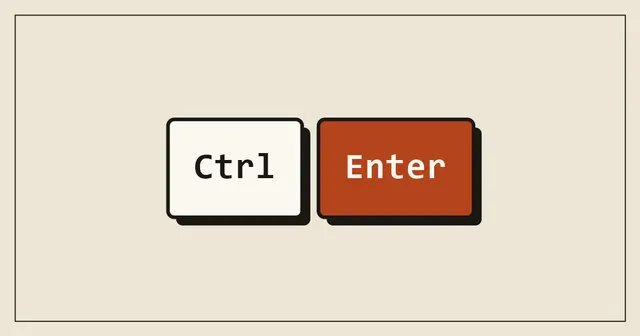
Email is mostly small decisions made over and over: archive this, reply to that, find the invoice from March. Gmail lets you do almost all of them with one or two keys, and it has a handful of settings that cut out a surprising amount of back and forth. This guide covers both. The shortcuts are for Gmail in a web browser on a computer, and the settings are found in the same place.
On a Mac, use Cmd wherever the tables say Ctrl. The single-letter shortcuts are the same on both systems.
Turn keyboard shortcuts on first
The shortcuts for writing and formatting a message work straight away. The single-key ones, such as e to archive or c to compose, only work once you switch them on:
- Click the gear icon at the top right of Gmail, then See all settings.
- Stay on the General tab and scroll down to Keyboard shortcuts.
- Choose Keyboard shortcuts on.
- Click Save Changes at the bottom of the page.
The setting belongs to your Google account, so it follows you to any computer where you sign in.
The five to learn first
- e archives the conversation. It leaves the inbox but stays searchable. Most email needs no other action, so this is the key you will press most.
- / jumps to the search box. Type what you are looking for without reaching for the mouse. Combine it with the search operators further down.
- c starts a new email, and Ctrl + Enter sends it when you are done.
- r, a and f reply, reply all and forward. Open a message, press the key, type.
- z undoes your last action. Archived the wrong thread or applied the wrong label? Press z straight away.
Write and send
These work without turning on the setting above.
| Shortcut | What it does |
|---|---|
| Ctrl + Enter | Send the message |
| Ctrl + Shift + C | Add Cc recipients |
| Ctrl + Shift + B | Add Bcc recipients |
| Ctrl + Shift + F | Change the From address, if you have more than one |
| Ctrl + K | Insert a link |
| Ctrl + M | Open spelling suggestions |
| Esc | Move to the latest open draft or chat |
| Shift + Esc | Move back to the main Gmail window |
Format text in a message
| Shortcut | What it does |
|---|---|
| Ctrl + B / I / U | Bold, italic, underline |
| Ctrl + Shift + 7 | Numbered list |
| Ctrl + Shift + 8 | Bulleted list |
| Ctrl + Shift + 9 | Quote |
| Ctrl + ] / [ | Indent more or less |
| Ctrl + Shift + + / - | Increase or decrease text size |
| Ctrl + \ | Remove formatting |
Ctrl + \ is worth remembering for text pasted from a website or a document. Select it, press the shortcut, and it matches the rest of your email.
Act on conversations
From here on, the shortcut setting needs to be on.
| Shortcut | What it does |
|---|---|
| e | Archive |
| # | Delete (move to Bin) |
| ! | Report as spam |
| r / Shift + r | Reply, or reply in a new window |
| a / Shift + a | Reply all, or reply all in a new window |
| f / Shift + f | Forward, or forward in a new window |
| s | Star or unstar |
| Shift + i | Mark as read |
| Shift + u | Mark as unread |
| + / - | Mark as important or not important |
| m | Mute the conversation |
| b | Snooze |
| l | Open the Label as menu |
| v | Open the Move to menu |
| Shift + t | Add the conversation to Google Tasks |
| [ / ] | Archive and go straight to the previous or next conversation |
| z | Undo the last action |
Mute (m) is for group threads that keep going long after you stopped caring. New replies skip your inbox, though the conversation still shows up in search and in All Mail.
Snooze (b) hides a message until a time you choose, then puts it back at the top of your inbox. It works well for anything you cannot deal with yet, such as a delivery notice for next week.
Move around
| Shortcut | What it does |
|---|---|
| j / k | Move to the older or newer conversation |
| o or Enter | Open the selected conversation |
| u | Go back to the inbox or list |
| n / p | Next or previous message inside an open conversation |
| ; / : | Expand or collapse every message in the conversation |
| g then i | Go to the inbox |
| g then s | Go to Starred |
| g then t | Go to Sent |
| g then d | Go to Drafts |
| g then a | Go to All Mail |
| g then l | Go to a label by typing its name |
| / | Search mail |
| c | Compose |
| d | Compose in a new tab |
| ? | Show the full list of shortcuts |
The g shortcuts are pressed one after the other: tap g, let go, then tap the second letter.
Select several conversations
| Shortcut | What it does |
|---|---|
| x | Select the highlighted conversation |
| * then a | Select all conversations on the page |
| * then n | Deselect all |
| * then u | Select unread conversations |
| * then r | Select read conversations |
A quick clean-up routine: move down the list with j, press x on each newsletter you will not read, then press e once to archive them all.
Search operators that find any email
Gmail search accepts operators that narrow results far better than plain words. You can combine as many as you like in the search box.
| Search | What it finds |
|---|---|
from:amy@example.com |
Mail from that sender (a name or part of the address also works) |
to:john@example.com |
Mail sent to that address |
subject:invoice |
Messages with the word in the subject line |
"quarterly report" |
That exact phrase |
from:amy OR from:david |
Mail from either sender |
dinner -movie |
Messages with the first word but not the second |
has:attachment |
Any message with an attachment |
filename:pdf |
Attachments of a type or with a name |
larger:10M |
Messages bigger than 10 MB |
older_than:1y |
Older than a year (also d for days and m for months) |
after:2026/01/01 before:2026/04/01 |
Messages between two dates |
is:unread |
Unread messages |
label:clients |
Messages with a label |
in:anywhere |
Includes Spam and Bin in the search |
category:promotions |
Messages in an inbox tab |
Two combinations people use again and again:
from:accounts@supplier.com has:attachment filename:pdf after:2026/01/01finds every invoice a supplier sent this year.has:attachment larger:10M older_than:1ylists the old, large messages that use up most of your storage.
Seven settings and tricks worth using
Give yourself time to undo a send
By default you get 5 seconds to take back a message after clicking Send. You can extend that. Go to the gear icon, See all settings, and on the General tab set Undo Send to 5, 10, 20 or 30 seconds. Save the changes.
After you send, an Undo link appears at the bottom left of the screen for that long. Thirty seconds is enough to catch a missing attachment or the wrong recipient.
Save replies you type often as templates
If you send the same answer every week (opening hours, payment details, how to book), save it as a template.
- Go to See all settings, open the Advanced tab, and set Templates to Enable. Save the changes.
- Write the reply in a new message.
- Click the three-dot More options menu at the bottom of the compose window, then Templates, Save draft as template, Save as new template.
Next time, open the same menu, choose Templates, and click the one you want. The text drops into your message, ready to adjust. Templates work in Gmail on a computer; the mobile apps do not offer them.
If you want help writing those standard replies in the first place, our ChatGPT prompts for small business include several for customer emails.
Schedule an email for later
Write the message, click the small arrow next to Send, and choose Schedule send. Pick one of the suggested times or set your own date and time.
Scheduled messages wait in the Scheduled folder in the left sidebar. Open one and click Cancel send to turn it back into a draft you can edit. You can have up to 100 scheduled emails at a time.
This is useful when you work late but do not want clients to get messages from you at 11pm, or when someone is in a different time zone.
Turn any search into a filter
Filters sort incoming mail automatically. The easiest way to build one:
- Click the Show search options icon at the right end of the search box.
- Fill in the sender, subject or words to match, and click Create filter.
- Choose what should happen: skip the inbox, apply a label, mark as read, star it, forward it, or never send it to spam.
- Tick Also apply filter to matching conversations to sort the mail you already have, then click Create filter.
A good first filter: send every receipt and order confirmation to a "Receipts" label and skip the inbox. You will still find them in search, and they stop interrupting you.
You can also open a message, click the three-dot menu at the top and choose Filter messages like these to start with the sender filled in.
Send sensitive details in confidential mode
Confidential mode sets an expiry date on a message and stops the recipient from forwarding, copying, printing or downloading it from Gmail. In the compose window, click the padlock and clock icon at the bottom, choose when the message expires, and decide whether the recipient needs an SMS passcode to open it.
You can also remove access early: open the message in your Sent folder and click Remove access.
Know the limits before you rely on it. Recipients can still take a screenshot or a photo of the screen. It is a sensible extra layer for things such as account details, and it does not guarantee that nobody keeps a copy.
Use plus addresses to sort sign-ups
Anything you add after a plus sign in a Gmail address still reaches you. Mail sent to yourname+newsletters@gmail.com lands in the inbox of yourname@gmail.com. Use a different word for each shop or service you sign up to, then build a filter on that address. If one of them starts sending spam, you will know which one shared it. A few websites reject the plus sign in their sign-up forms, so keep your plain address as a fallback.
Snooze and mute instead of leaving mail unread
Many people leave messages unread as a reminder, which makes the unread count useless. Snooze (b) brings a message back when you can act on it, and mute (m) silences threads you no longer need to follow. Together they let you keep an inbox that only holds things you still need to do.
How to make the shortcuts stick
Start with one session a day where you keep your hand off the mouse in Gmail. Use j and k to move, o to open, and then e, r or b for every message. When you forget one, press ? to see the full list on screen rather than looking it up.
After a week, those five or six keys are automatic, and you can add the g shortcuts. Since Gmail lives in your browser, the tab and window shortcuts in our Chrome shortcuts and tricks guide fit well alongside these. For more ways to cut down the time email takes, see our guide to using AI to save time at work.
Common questions
Why do the Gmail shortcuts not work for me?
Most likely the setting is off. Turn on Keyboard shortcuts on under See all settings, General, and save. Also check that your cursor is not in the search box or a text field, where pressing a letter types it instead. A browser extension can sometimes take over a key as well.
Do the shortcuts work in the Gmail app on a phone?
No. The shortcuts in this guide are for Gmail in a web browser on a computer. The phone apps rely on taps and swipes instead, and you can set what a left or right swipe does in the app's settings.
Does archiving delete an email?
No. Archived mail leaves the inbox but stays in All Mail and appears in search results. Deleted mail goes to the Bin (called Trash in some regions), and Gmail removes it permanently after 30 days.
Written by
The Applio team
We build booking software for appointment-based businesses: the Applio platform and the BarberSamir app on the App Store. We write about the tools and habits that save us time. More about us
Keep reading
Shortcuts
Windows 11 keyboard shortcuts: 60 that actually save time
A practical Windows 11 shortcut cheat sheet covering windows, screenshots, clipboard history, virtual desktops, File Explorer and text editing, grouped by task.
· 7 min read
Shortcuts
Mac keyboard shortcuts cheat sheet: 55 every Mac user should know
The Mac shortcuts that matter: Spotlight, screenshots, window tiling, Finder navigation, hidden files and text editing. Grouped by task, with macOS tips that most switchers miss.
· 6 min read
Shortcuts
Excel shortcuts cheat sheet: 45 shortcuts to work twice as fast
The Excel keyboard shortcuts that matter most: moving around big sheets, selecting data, formatting, formulas, filters and tables. Windows first, with Mac equivalents where they differ.
· 7 min read