Microsoft Word keyboard shortcuts: 60 that make writing and editing faster
A Microsoft Word shortcut cheat sheet for moving around, selecting, formatting, styles, pasting and review, with Mac equivalents where the keys differ.
By The Applio team11 min read
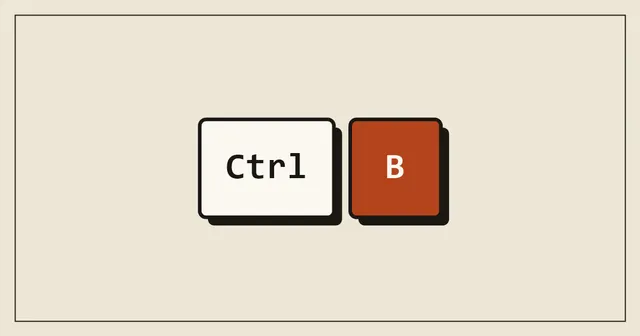
Most of the time spent in Word goes into small, repeated jobs: fixing formatting that came in with a paste, selecting a paragraph to move it, making a heading look like the other headings. Each one takes a few clicks, and the clicks add up over a long document. The shortcuts below handle those jobs from the keyboard. They are grouped by task, with the Mac version in its own column where it differs.
Everything here works in Word for Microsoft 365 on Windows and Mac, and most of it in Word 2021 and older desktop versions too. On a Mac, a few function key shortcuts clash with macOS features, so you may need to hold Fn or change the keyboard settings in System Settings.
The five to learn first
These five fix the problems people run into most in everyday documents.
- Ctrl + Shift + V pastes text only. Text copied from a website or an email arrives without its fonts, colours and odd spacing, and takes on the formatting of the paragraph you paste into. On a Mac it is Cmd + Shift + V.
- Ctrl + Alt + 1, 2 or 3 applies Heading 1, 2 or 3. Real heading styles make the Navigation pane, the table of contents and consistent formatting work. On a Mac, use Cmd + Option with the number.
- Ctrl + Space removes manual character formatting. Select a messy sentence, press it, and the text goes back to whatever its style says: font, size, colour, bold and so on.
- Shift + F3 changes case. Press it on selected text to cycle through UPPER CASE, lower case and Capitalise Each Word. It saves retyping a heading someone wrote with Caps Lock on. It works the same on a Mac.
- Shift + F5 jumps back to your previous edit. Press it repeatedly to step back through recent edit locations. Pressed right after you open a document, it takes you to where you were working when it was last closed.
Move around a document
| Shortcut (Windows) | Mac | What it does |
|---|---|---|
| Ctrl + Left/Right | Option + Left/Right | Move one word left or right |
| Ctrl + Up/Down | Cmd + Up/Down | Move up or down one paragraph |
| Home / End | Cmd + Left/Right | Start or end of the line |
| Ctrl + Home / End | Cmd + Home / End | Start or end of the document |
| Ctrl + G or F5 | Cmd + Option + G | Go To a page, section, heading or comment |
| Ctrl + F | Cmd + F | Search the document |
| Ctrl + H | Ctrl + H | Find and replace |
| Shift + F5 | Shift + F5 | Go back to the previous edit location |
| Ctrl + Alt + S | (no shortcut) | Split the window to see two parts of one document |
Go To is the quickest way around a long report. Press Ctrl + G, type a page number and press Enter. The same dialog can also jump to the next comment, table or heading.
Split window helps when you need to read page 2 while you write page 30. Press Ctrl + Alt + S again to remove the split.
Select text
| Shortcut (Windows) | Mac | What it does |
|---|---|---|
| Shift + arrow keys | Shift + arrow keys | Extend the selection a character or line at a time |
| Ctrl + Shift + Left/Right | Option + Shift + Left/Right | Select a word at a time |
| Ctrl + Shift + Up/Down | Cmd + Shift + Up/Down | Select to the start or end of the paragraph |
| Shift + Home / End | Cmd + Shift + Left/Right | Select to the start or end of the line |
| Ctrl + Shift + Home / End | Cmd + Shift + Home / End | Select to the start or end of the document |
| Ctrl + A | Cmd + A | Select the whole document |
| F8, pressed repeatedly | F8, pressed repeatedly | Grow the selection: word, sentence, paragraph, document |
| Shift + F8 | Shift + F8 | Shrink the selection one step |
| Alt + drag | Option + drag | Select a vertical block of text |
| Esc | Esc | Stop extending the selection |
F8 is the most underused shortcut in this group. Put the cursor in a sentence and press it twice to select the word, three times for the sentence, four for the paragraph. Press Esc when you have what you need, otherwise Word keeps extending the selection as you move.
Vertical block selection is handy for text pasted from another system with a column of codes or numbers at the start of each line. Hold Alt, drag down over the column, and delete it in one go.
Format characters
| Shortcut (Windows) | Mac | What it does |
|---|---|---|
| Ctrl + B / I / U | Cmd + B / I / U | Bold, italic, underline |
| Ctrl + Shift + > / < | Cmd + Shift + > / < | Increase or decrease font size to the next size in the list |
| Ctrl + ] / [ | Cmd + ] / [ | Increase or decrease font size by one point |
| Ctrl + D | Cmd + D | Open the Font dialog |
| Shift + F3 | Shift + F3 | Cycle between upper case, lower case and title case |
| Ctrl + Shift + A | Cmd + Shift + A | All capitals |
| Ctrl + Shift + K | Cmd + Shift + K | Small capitals |
| Ctrl + Shift + D | Cmd + Shift + D | Double underline |
| Ctrl + Shift + + | (Home tab button) | Superscript |
| Ctrl + Space | (Clear Formatting button) | Remove manual character formatting |
| Ctrl + Alt + C | Cmd + Option + C | Copy the formatting of the selected text |
| Ctrl + Alt + V | Cmd + Option + V | Paste that formatting onto other text |
The copy and paste formatting pair is Format Painter without the mouse. Copy the formatting from a sentence that looks right, then select each sentence that looks wrong and paste. The formatting stays copied, so you can keep pasting it onto as many places as you need.
Paragraphs, lists and styles
| Shortcut (Windows) | Mac | What it does |
|---|---|---|
| Ctrl + L / E / R / J | Cmd + L / E / R / J | Align left, centre, right, justify |
| Ctrl + 1 / 2 / 5 | Cmd + 1 / 2 / 5 | Single, double or 1.5 line spacing |
| Ctrl + M | Ctrl + Shift + M | Indent the paragraph |
| Ctrl + Shift + M | Cmd + Shift + M | Remove the indent |
| Ctrl + T | Cmd + T | Hanging indent |
| Ctrl + Shift + L | Cmd + Shift + L | Bulleted list |
| Ctrl + Q | (no shortcut) | Remove manual paragraph formatting |
| Ctrl + Alt + 1 / 2 / 3 | Cmd + Option + 1 / 2 / 3 | Heading 1, 2 or 3 |
| Ctrl + Shift + N | Cmd + Shift + N | Back to the Normal style |
| Ctrl + Alt + Shift + S | (Styles pane button) | Open the Styles pane |
| Alt + Shift + Up/Down | Ctrl + Shift + Up/Down | Move the selected paragraphs up or down |
| Ctrl + Shift + 8 | (Home tab, ¶ button) | Show or hide paragraph marks and other hidden characters |
Styles are where Word saves the most time over a whole document. If every heading uses Heading 2, changing the look of all of them is one edit to the style. If each heading was formatted by hand, you have to fix them one by one.
Showing paragraph marks with Ctrl + Shift + 8 is the fastest way to work out why a layout behaves oddly. Extra empty paragraphs, stray tabs and manual line breaks all become visible.
Insert things
| Shortcut (Windows) | Mac | What it does |
|---|---|---|
| Ctrl + K | Cmd + K | Insert a link |
| Ctrl + Enter | Cmd + Return | Page break |
| Shift + Enter | Shift + Return | Line break without starting a new paragraph |
| Ctrl + Shift + Space | Option + Space | Non-breaking space, so two words stay on the same line |
| Ctrl + Alt + F | Cmd + Option + F | Footnote |
| Alt + Shift + D | Ctrl + Shift + D | Insert the date as a field |
| Ctrl + Alt + . | (no shortcut) | Ellipsis character (…) |
A page break with Ctrl + Enter is much more reliable than pressing Enter until the cursor reaches the next page. Edit anything above the break and the next section still starts at the top of a page.
Use a non-breaking space between a number and its unit, such as "10 kg", or in a name you do not want split across two lines.
Review, save and print
| Shortcut (Windows) | Mac | What it does |
|---|---|---|
| Ctrl + Alt + M | Cmd + Option + A | Add a comment |
| Ctrl + Shift + E | Cmd + Shift + E | Turn Track Changes on or off |
| F7 | F7 | Check spelling and grammar |
| Ctrl + Shift + G | (status bar) | Word Count dialog |
| Ctrl + S | Cmd + S | Save |
| F12 | Cmd + Shift + S | Save As |
| Ctrl + P | Cmd + P | |
| Ctrl + W | Cmd + W | Close the document |
| Ctrl + Z / Ctrl + Y | Cmd + Z / Cmd + Y | Undo and redo |
| F4 | Cmd + Y | Repeat the last action |
On Windows, F4 repeats whatever you just did. Apply a highlight colour to one phrase, select the next phrase, press F4, and it gets the same highlight. It works for inserting rows in a table, applying a style, deleting a word and most other commands. On a Mac, F4 pastes instead.
If you select some text before opening Word Count, it counts only the selection, which helps when a form or application limits one section to a set number of words.
A practical way to learn these
Pick one real document you need to tidy up, such as a report someone else started or a proposal built from pasted pieces, and use it as practice:
- Select each heading and press Ctrl + Alt + 1 or 2. Then open the Navigation pane with Ctrl + F and check that the outline makes sense.
- Press Ctrl + Shift + 8 and delete the empty paragraphs and stray tabs.
- Select body text with odd fonts and press Ctrl + Space.
- Replace any "Enter, Enter, Enter" page breaks with Ctrl + Enter.
- Turn on Track Changes with Ctrl + Shift + E before you edit the wording, so the author can see what changed.
The basic text editing shortcuts, such as deleting a whole word with Ctrl + Backspace, work in Word and nearly every other app; they are in our Windows 11 keyboard shortcuts list, and Mac users will find the system-wide equivalents in our Mac keyboard shortcuts guide. If you write a lot of first drafts in Word, our guide to using AI to save time at work covers getting a rough version written quickly so you can spend your time editing.
Common questions
Can I see the shortcut for a ribbon button?
Hover over a button and the tooltip usually shows its shortcut if it has one. On Windows, you can also press Alt to show a letter on every ribbon tab, then press the letters in order to reach any command without the mouse.
Why does Ctrl + Shift + V paste plain text now?
In current Microsoft 365 versions of Word, Ctrl + Shift + V is the "paste text only" shortcut. If you used it in older versions to paste formatting, use Ctrl + Alt + V for that instead.
Can I create my own shortcuts?
Yes, in the desktop app. On Windows, go to File, Options, Customize Ribbon and click Customize next to Keyboard shortcuts. On a Mac, go to Tools, Customize Keyboard. Pick a command, press the keys you want and click Assign.
Do these work in Word on the web?
Many of them do, including formatting, styles and the basic navigation keys. The browser takes some combinations for itself, though. Ctrl + W, for example, closes the browser tab.
Why do function keys not work on my laptop?
On many laptops the top row controls volume and brightness by default, so F8 becomes Fn + F8. Most have an Fn Lock, often Fn + Esc, that swaps the behaviour.
Written by
The Applio team
We build booking software for appointment-based businesses: the Applio platform and the BarberSamir app on the App Store. We write about the tools and habits that save us time. More about us
Keep reading
Shortcuts
Windows 11 keyboard shortcuts: 60 that actually save time
A practical Windows 11 shortcut cheat sheet covering windows, screenshots, clipboard history, virtual desktops, File Explorer and text editing, grouped by task.
· 7 min read
Shortcuts
Mac keyboard shortcuts cheat sheet: 55 every Mac user should know
The Mac shortcuts that matter: Spotlight, screenshots, window tiling, Finder navigation, hidden files and text editing. Grouped by task, with macOS tips that most switchers miss.
· 6 min read
Shortcuts
Excel shortcuts cheat sheet: 45 shortcuts to work twice as fast
The Excel keyboard shortcuts that matter most: moving around big sheets, selecting data, formatting, formulas, filters and tables. Windows first, with Mac equivalents where they differ.
· 7 min read