Flash Fill in Excel: Ctrl + E splits names, emails and dates for you
Type one example, press Ctrl + E, and Excel fills the rest of the column. How to use Flash Fill to split names, join columns, pull out parts of emails and reformat phone numbers, and what to do when it does not work.
By The Applio team6 min read
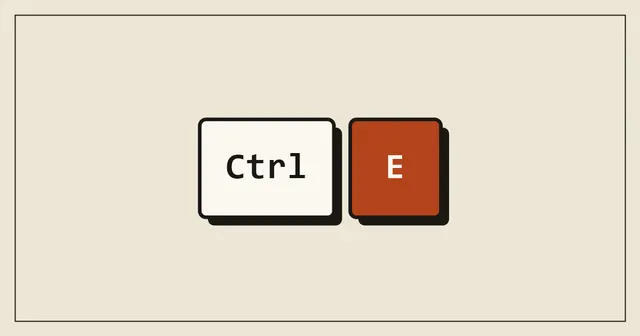
Flash Fill is the Excel shortcut for work you would otherwise do by typing the same kind of thing 200 times. Type one example of what you want next to your data, go to the cell below it and press Ctrl + E. Excel works out the pattern and fills the rest of the column. It needs no formula, and it works in Excel 2013 and later on Windows and in current versions of Excel for Mac.
Quick reference
| What you want | Windows | Mac |
|---|---|---|
| Flash Fill | Ctrl + E | Control + E |
| Flash Fill from the ribbon | Data, Flash Fill | Data, Flash Fill |
| Undo a fill you do not like | Ctrl + Z | Cmd + Z |
| Fill down (copy the cell above) | Ctrl + D | Cmd + D |
How to use it: split first names from full names
Say column A holds full names, starting in A2.
- In B2, type the first name from A2 exactly as you want it, for example Maria.
- Press Enter to move to B3.
- Press Ctrl + E.
Excel fills B3 down to the last row of your data with the first name from each row. For last names, do the same in column C: type the last name from A2, move down one cell and press Ctrl + E again.
Two things have to be true for this to work. The new column must sit right next to the data, with no empty column in between. And your example must be on the same row as the data it came from.
What else Flash Fill can do
The steps are always the same: type one example, move down, press Ctrl + E. Only the example changes.
| You have | You type once | Flash Fill gives you |
|---|---|---|
| Maria Lopez | M. Lopez | Initial and last name for every row |
| Maria in A, Lopez in B | Lopez, Maria | The two columns joined in a new order |
| maria.lopez@example.com | maria.lopez | The part of each email before the @ |
| maria.lopez@example.com | example.com | The domain of each email |
| 5551234567 | (555) 123-4567 | Every phone number in that format |
| maria lopez | Maria Lopez | Names with capital letters |
| INV-2026-00417 | 00417 | The number at the end of each code |
| 14/03/2026 | 2026 | The year from each date stored as text |
It also works the other way round. If you have first names in one column and last names in another, type the email address you want for the first person, such as maria.lopez@company.com, and Flash Fill builds the rest.
When one example is not enough
Flash Fill guesses from what you give it, and one example can fit more than one pattern. A common case: some people in the list have a middle name. If your first example was "Maria Lopez" turned into "Lopez", Excel may return the middle name for "John Paul Smith".
To fix it, do not undo everything. Find the first wrong row, type the correct result over it and press Enter. Excel usually takes that as a second example and corrects the rows below. If it does not, select the cell under your correction and press Ctrl + E again.
Always scroll through the result before you rely on it. Check rows that look different from the rest: double surnames, missing values, extra spaces.
Flash Fill results do not update
This is the main difference from a formula. Flash Fill writes plain values into the cells. If you later change a name in column A, the first name in column B stays as it was.
That makes Flash Fill the right tool for a one-off clean-up, such as an export you need to tidy before sending. For a sheet where the source data keeps changing, use a formula instead:
- First name:
=TEXTBEFORE(A2," ") - Last name:
=TEXTAFTER(A2," ",-1) - Email domain:
=TEXTAFTER(A2,"@")
TEXTBEFORE and TEXTAFTER are in Microsoft 365 and Excel 2024. In older versions, =LEFT(A2,FIND(" ",A2)-1) returns the first name.
Why Ctrl + E does nothing
- There is an empty column between the data and your example. Flash Fill only looks at the columns right next to the one you are filling. Move your example so it touches the data.
- Excel cannot see a pattern. You get a message saying it looked at the data and did not find one. Type a second example in the next row, then press Ctrl + E on the row after that.
- The data runs across a row. Flash Fill works down columns, not across rows.
- The cells are formatted in a way that hides the real value. A date that shows as 14 March 2026 is stored as a number, so the pattern Excel sees is not the one you see. Use
=TEXT(A2,"yyyy")or=YEAR(A2)for real dates. - You are in Excel for the web. Flash Fill is a feature of the desktop apps. If the shortcut does nothing in a browser, open the file in the desktop app or use the formulas above.
- Automatic Flash Fill is switched off. This only affects the grey suggestions that appear as you type, not the shortcut. To turn them back on, go to File, Options, Advanced and tick Automatically Flash Fill.
Flash Fill on its own, without the shortcut
Excel sometimes offers Flash Fill before you ask. When you type the second example in a column, a grey preview of the remaining rows can appear. Press Enter to accept it, or keep typing to ignore it.
You can also run it from the ribbon: Data, Flash Fill, or Home, Fill, Flash Fill.
The same thing in Google Sheets
Google Sheets has a similar feature called Smart Fill. Type one or two examples and Sheets shows a suggestion box; accept it there, or press Ctrl + Shift + Y (Cmd + Shift + Y on a Mac). Unlike Flash Fill, Smart Fill writes a formula into the cells, so the results update when the source changes. More Sheets time-savers are in our Google Sheets shortcuts guide.
Common questions
Is Flash Fill the same as AutoFill?
No. AutoFill is what happens when you drag the small square at the corner of a cell: it copies a value or continues a series such as 1, 2, 3 or Monday, Tuesday. Flash Fill reads a pattern from the column next to it and builds new text from it.
Can Flash Fill work on numbers?
Yes, with care. It can pull digits out of a code or reformat a phone number. The result may be stored as text, so check that a SUM over the new column gives what you expect.
Does Flash Fill work on filtered or hidden rows?
It fills every row in the range, including hidden ones. If you only want some rows changed, sort the data so those rows sit together, then fill only that block.
Can I use Flash Fill on a table?
Yes. It works the same inside an Excel table. Add a new column at the right edge, type your example and press Ctrl + E.
Flash Fill is one of the shortcuts in our Excel shortcuts cheat sheet, which comes with a free printable PDF. If the clean-up needs more than a pattern, ChatGPT for Excel shows how to get formulas written for you, and the Excel strikethrough shortcut covers crossing out finished rows.
Written by
The Applio team
We build booking software for appointment-based businesses: the Applio platform and the BarberSamir app on the App Store. We write about the tools and habits that save us time. More about us
Keep reading
Shortcuts
Strikethrough in Google Sheets: the shortcut and three other ways
Strikethrough in Google Sheets is Alt + Shift + 5 on Windows and Cmd + Shift + X on a Mac. Here is how to apply it to cells or part of a cell, remove it, and cross out rows automatically.
· 5 min read
Shortcuts
Excel shortcut to insert a row (and delete one) on Windows and Mac
Insert a row in Excel with Shift + Space, then Ctrl + Shift + +. Delete one with Ctrl + -. Mac keys, inserting several rows at once, and what to do when the shortcut opens a dialog instead.
· 4 min read
Shortcuts
Paste values only in Google Sheets: shortcut and menu
Ctrl + Shift + V pastes values only in Google Sheets (Cmd + Shift + V on a Mac): the result of a formula without the formula, or text without its colours and fonts. Plus the other Paste special options.
· 4 min read